Setting up the Prepare menu
Introduction
The Prepare menu allows authors to take action on a document, sheet, or piece of media before previewing or publishing. It's very similar in spirit to Library, but is semantically different in that plugins for the Prepare menu are typically related to content orchestration actions, while the Library is more about day to day authoring needs within a document. It's very placement next to the preview and publish buttons should signal separate, but related actions.
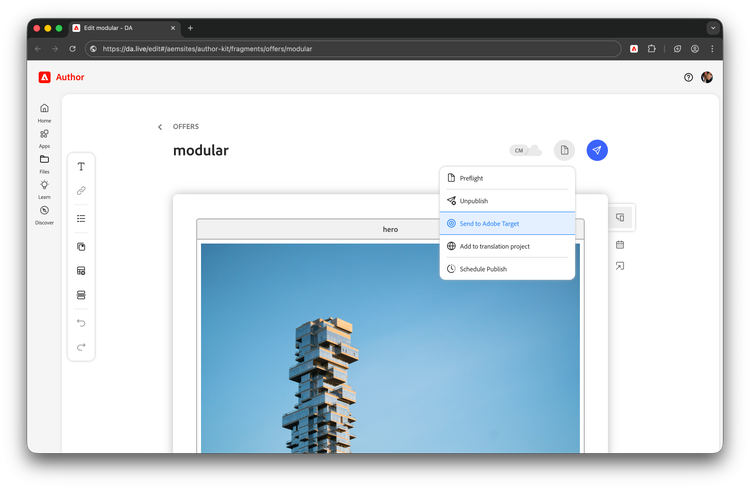
Features
The features within Prepare fall under three different use cases:
Always-on plugins
These plugins are always on regardless of any configuration.
- Preflight - This checks your document for common mistakes: seo anti-patterns, accessibility issues, broken links, etc.
- Unpublish - Unpublish a piece of content without using any other tools.
Feature-flag plugins
These plugins are built by Adobe and are only available if they're listed in the prepare config.
- Schedule Publish - Schedule a page or sheet to be published at a later time.
- Send to Adobe Target - Send a page or fragment to Adobe Target for personalization use cases.
Project plugins
These plugins are built for specific projects by customers, partners, or even Adobe itself. These use the same SDK as Library and Apps. Here are some examples:
- Rollout page - Copy a page into its downstream languages or locales.
- Add to localization project - Add a page or sheet to a new or existing localization project.
- Add to Snapshot - Add a page or sheet to a new or existing snapshot manifest.
- Send for Review - Send a piece of content to Workfront or other workflow-like systems.
Understanding inheritance
The Prepare menu uses an inheritance model for configurations. This gives you the flexibility to:
- Overwrite an always-on / Adobe-provided plugin with your own version of the same name.
- Have sites selectively inherit from their parent org.
Setup
The prepare menu is created from a tab named prepare in a DA Site Config or DA Org Config. Examples:
- Org -
https://da.live/config#/geometrixx/ - Site -
https://da.live/config#/geometrixx/gov/
Properties
- title - The name of the plugin. This required field will be displayed to creators is also used to lookup plugins from an org or an always on plugin.
- path - The path to your plugin. This field is required unless you are simply turning on a feature-flag plugin.
- icon - An optional fully qualified path to your plugin's icon. If using an SVG, it must be available for cross-origin requests.
- ref - An optional param to gate plugin visibility to specific audiences. Useful for development, QA, or UAT testing.
Example prepare tab
| title | path | icon | ref |
| Send to Adobe Target | |||
| Schedule Publish | uat | ||
| Send for review | https://main--gov--geometrixx.aem.live/tools/workfront.html | http://content.da.live/geometrixx/gov/docs/icons/workfront.svg#workfront-logo | |
| Rollout | https://da.live/nx/public/plugins/rollout.html | https://da.live/nx/public/plugins/rollout/media_195da69764de2782d555abed3042d8434a040e31c.png |
Each of the above rows represent a slightly different use case. Let's unpack each:
- Send to Adobe Target - "Please make the Adobe-provided, but feature-flagged Adobe Target plugin available to all authors."
- Schedule Publish - "Please make the Adobe-provided, but feature-flagged Schedule publish plugin available to users who use the
?ref=uatquery param." - Send for review - "Please make my own plugin available to all authors."
- Rollout - "Please make the early-access Rollout plugin from Adobe available to all authors."
Additional plugin details
The following plugins have additional documentation to help with their configuration: