1 - Create your project
Visit DA.live
- https://da.live/start
- Select "Author Kit" as your starting project.
- You will be redirected to GitHub.
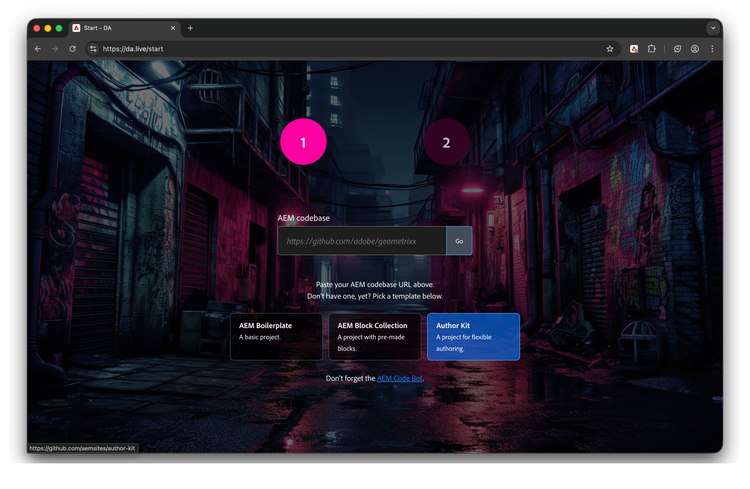
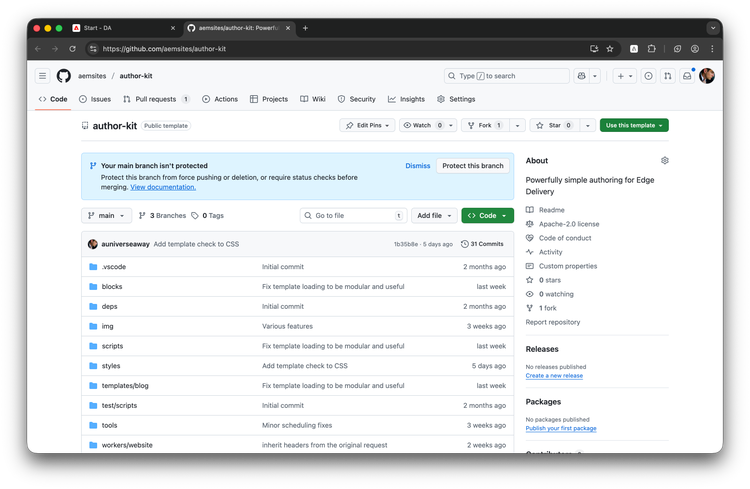
Create a GitHub project from the template
-
Click "Use this template" when prompted.
-
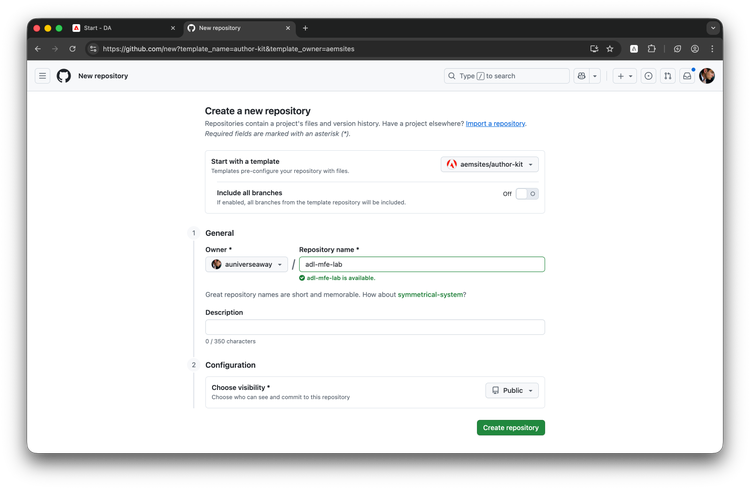
Select an owner and name your repository. Click Create repository.
-
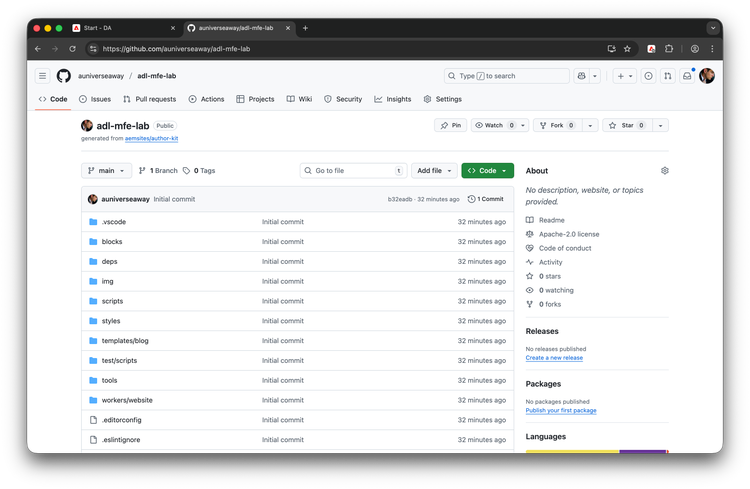
You will be redirected to your new repo.
Install the AEM Code Bot
-
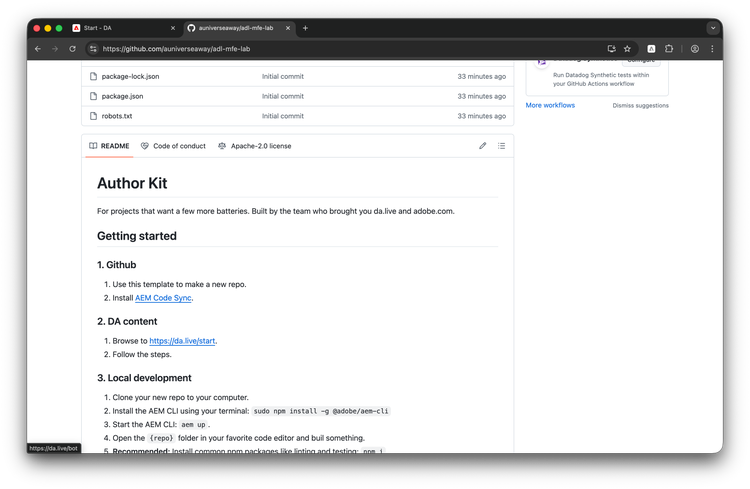
Scroll down until you see "Install AEM Code Sync" and select it – this will tell Edge Delivery about your repo.
-
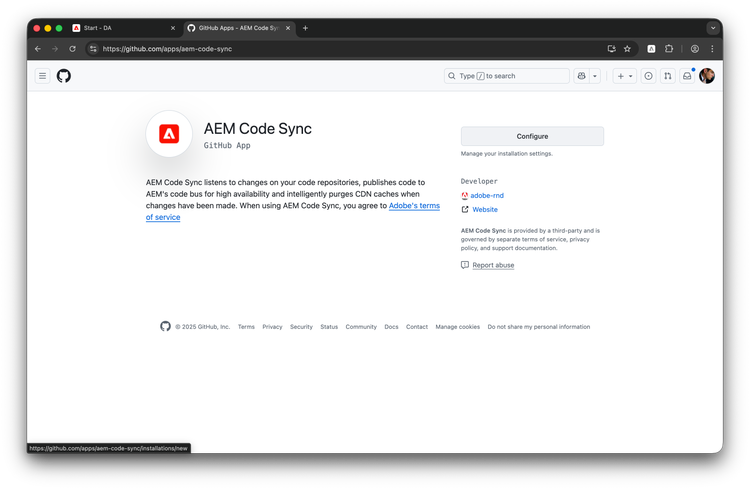
Click "configure" on the bot's screen.
-
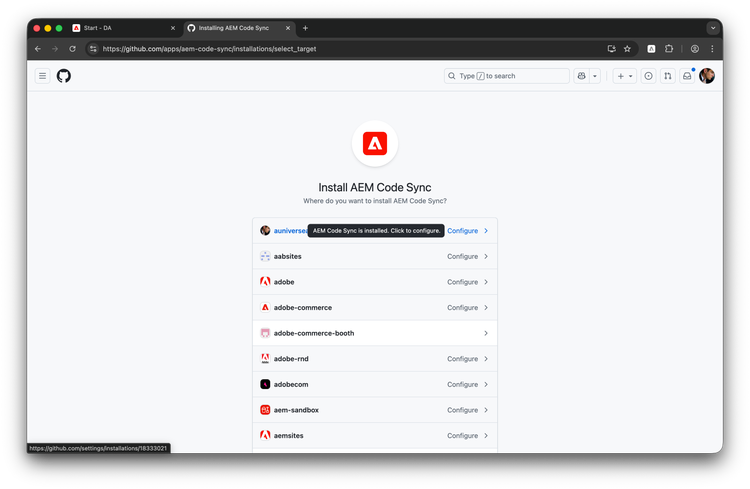
You may be prompted to select an organization. Pick the one you used to create your repo.
-
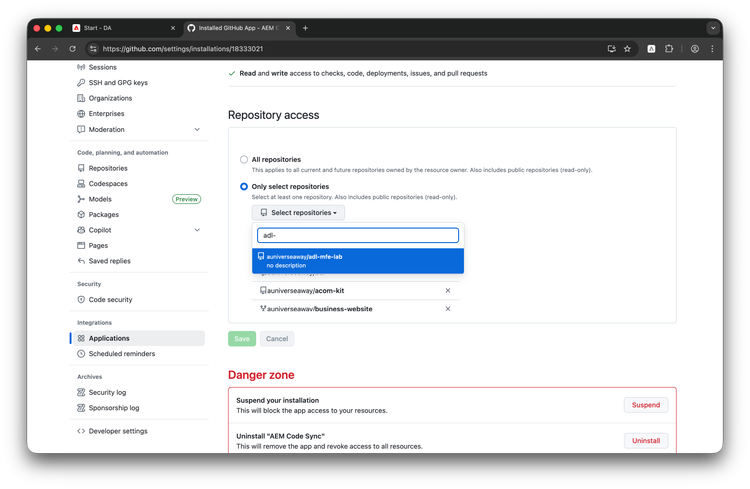
Choose "Only select repositories". Filter for your repo. Select it. Click Save.
-
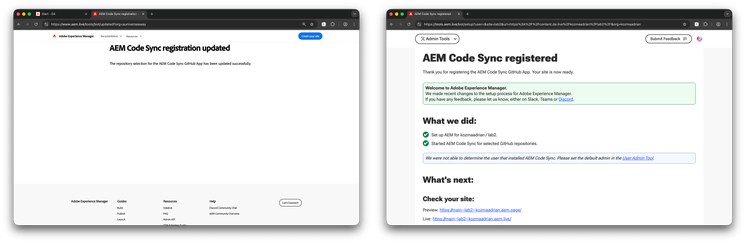
You will be taken to the Code Sync confirmation screen. It will look like one of the two screens below.
-
Click back in your browser until you get to your repo on GitHub:
https://github.com/{ORG}/{SITE}.
Copy the URL from your browser's URL bar.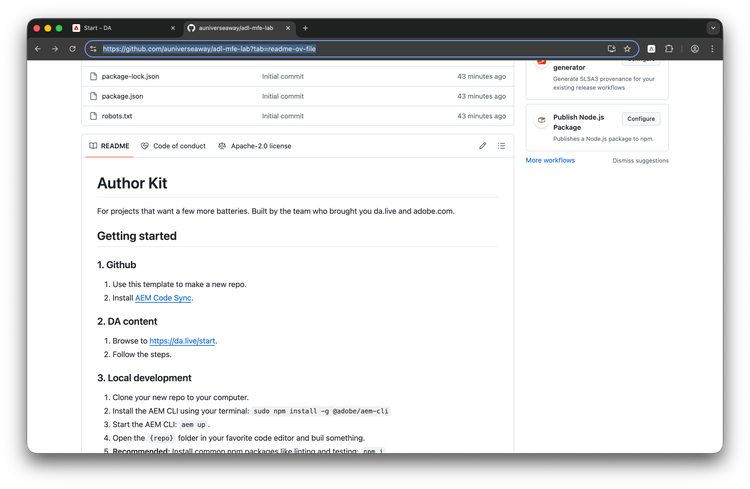
-
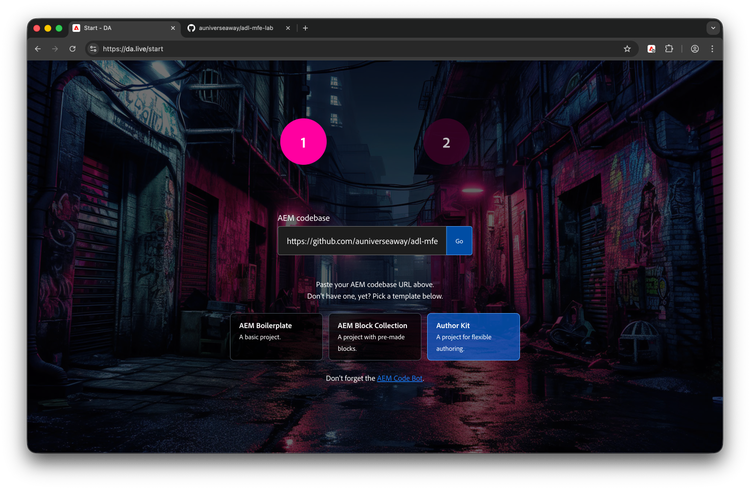
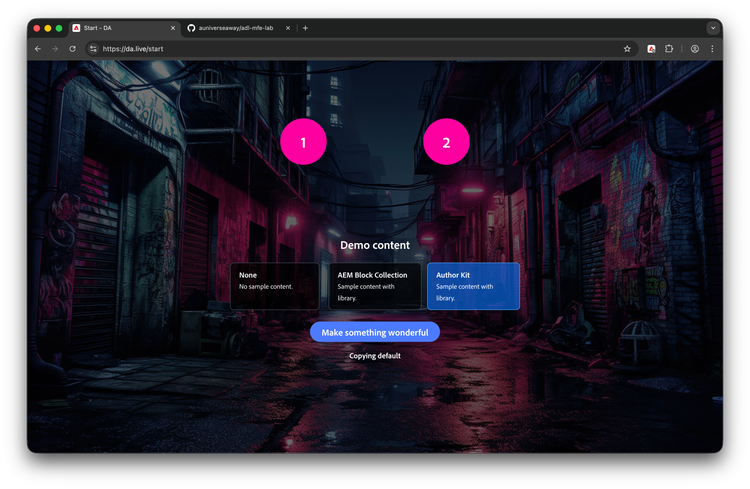
Paste it into https://da.live/start. Tip: It should already be open in the browser tab to the left of GitHub. Press Go.
Create demo content
-
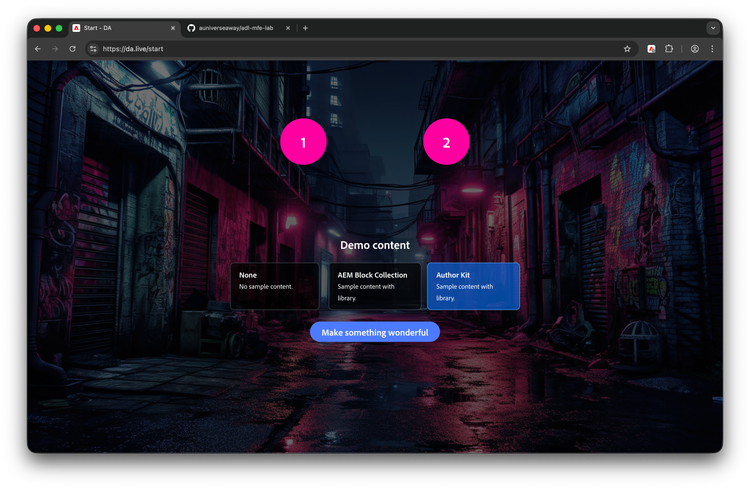
Select "Author Kit" demo content and click Make something wonderful. This will give you a bit of content to work with.
-
Basic content will be copied and previewed for your site.
Visit your site
-
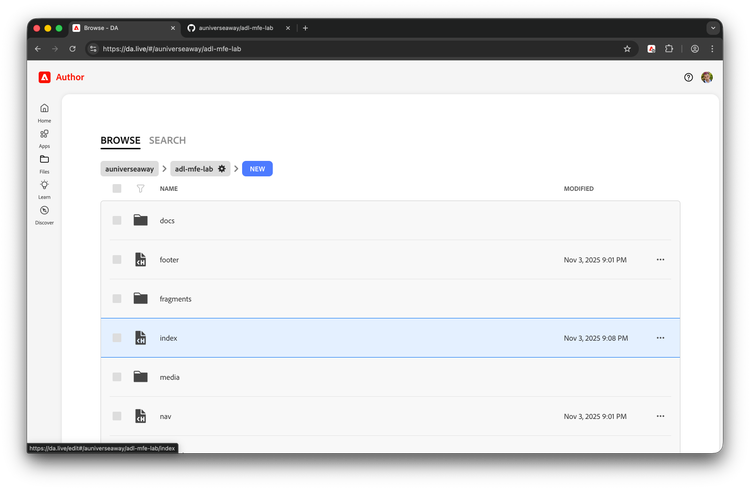
You will be taken to your content on da.live.
-
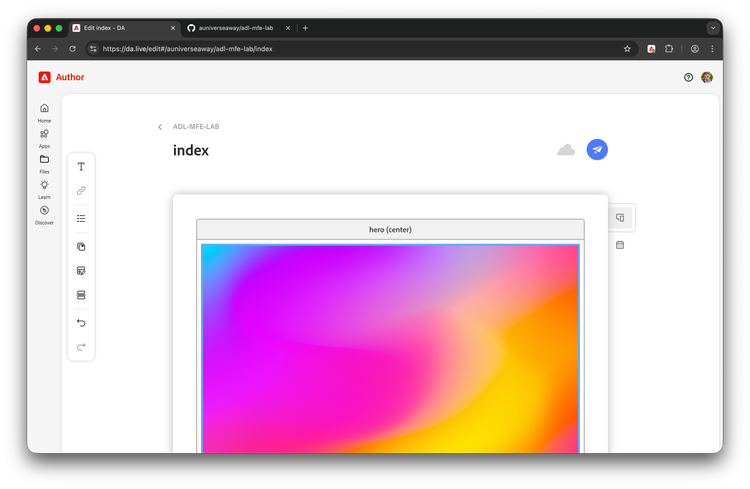
Click on the word "index" in the list of content. It will open the editor.
-
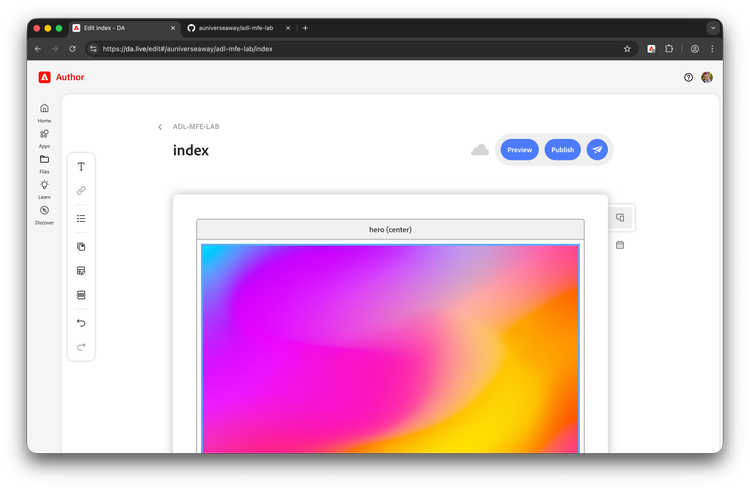
Preview your page by clicking the paper plane and the preview button.
-
You will be taken to your site.
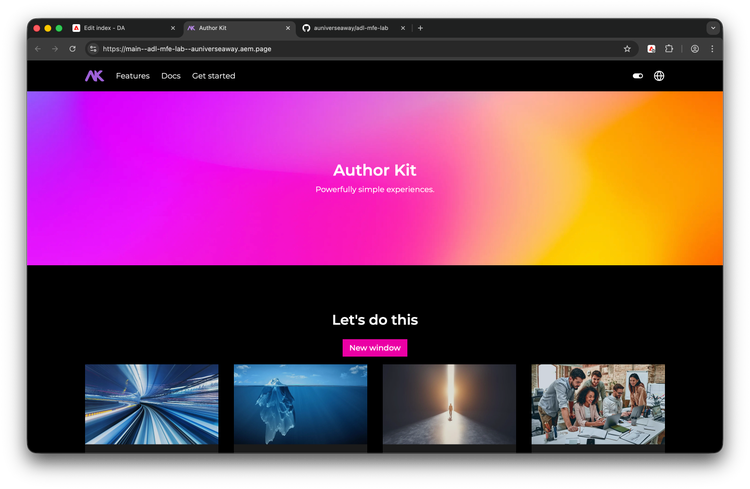
Success!
Congratulations. You have successfully made an Edge Delivery project.