Using AEM Snapshots
The following is a guide on how to use AEM Snapshots on Edge Delivery.
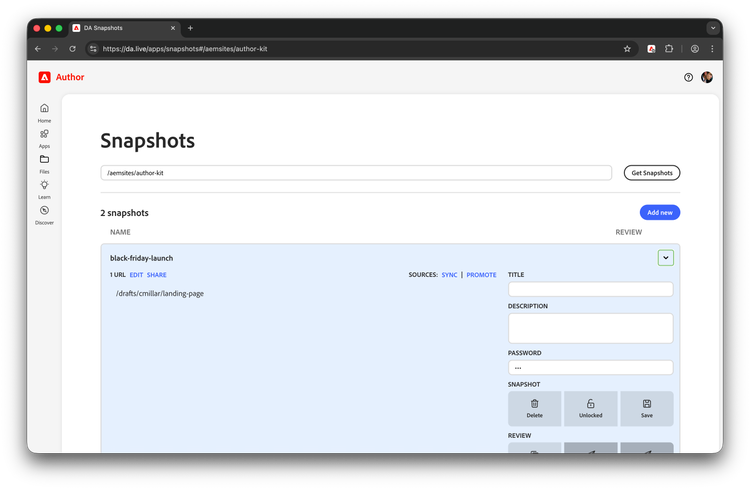
Preview desired content
Make some content and preview it. Take note of these pages (ie. copy the URLs)
Make a snapshot
-
If you don't have a path, enter one (
/geometrixx/outdoors) You will get a list of snapshots. -
Edit or create a new snapshot.
-
You will have the edit snapshot screen.
-
Required:
- Name
- URLs (paste from earlier)
-
Not required:
- title
- description
- password (recommended)
-
-
Click save. This will copy those pages into a snapshot.
-
The edit URLs text area will turn into a list that you can click to preview each page.
Request approval
- If you want a peer review, click "request review" and send a colleague to the AEM Snapshots app telling them what snapshot you want reviewed.
- Requesting a review will prevent the snapshot manifest (aka list of URLs) from being edited.
- If / when they approve, they will use the "approve snapshot" button and all the pages in the snapshot will be pushed to production.
- When done, if you want to delete the snapshot, you will click delete twice: once to clear out the URLs, and once to delete the actual snapshot.
Schedule snapshot (early access)
Please reach out to Adobe to enable Snapshot Scheduling. Once your organization is registered, anyone with publish permissions can schedule a snapshot for release.
- Open the snapshot you want to schedule
- Select a date you want the snapshot to publish.