DA MCP
Let your AI assistant read, write, and manage Document Authoring content — directly from your conversation.
What is DA MCP?
DA MCP connects AI assistants like Claude or ChatGPT to your DA projects using the Model Context Protocol (MCP), an open standard for giving AI tools access to external services. Once connected, Claude can browse your content, read files, create new pages, move things around, and check version history — without you ever leaving the chat window.
Think of it as giving your AI assistant a direct line to DA, the same way a developer has access from the command line. Instead of copy-pasting content back and forth, you can say things like "draft a new page at /products/overview and save it to DA" or "show me what changed in this document over the past week" — and Claude will just do it.
What can it do?
DA MCP exposes 14 tools covering the full content lifecycle:
| Tool | What it does |
da_list_sources |
Browse directories and list files in a repository |
da_get_source |
Read the full content of any file |
da_create_source |
Create a new file with provided content |
da_update_source |
Update an existing file in place |
da_delete_source |
Delete a file |
da_copy_content |
Copy content from one location to another |
da_move_content |
Move or rename content |
da_get_versions |
View version history for a file |
da_lookup_media |
Look up media asset references |
da_lookup_fragment |
Look up content fragment references |
da_preview_content |
Preview a document by publishing it to the AEM Edge Delivery preview environment |
da_unpreview_content |
Remove a document's preview from the AEM Edge Delivery preview environment |
da_publish_content |
Publish a document to the AEM Edge Delivery live environment |
da_unpublish_content |
Remove a document from the AEM Edge Delivery live environment |
Setup
There are four ways to connect DA MCP to an AI assistant, depending on how you work.
Option 1: Claude.ai (web)
The easiest way to get started. DA MCP can be added to Claude (and also others like ChatGPT) as a custom connector. Navigate to Settings → Connectors, click the Add and then Add custom connector.
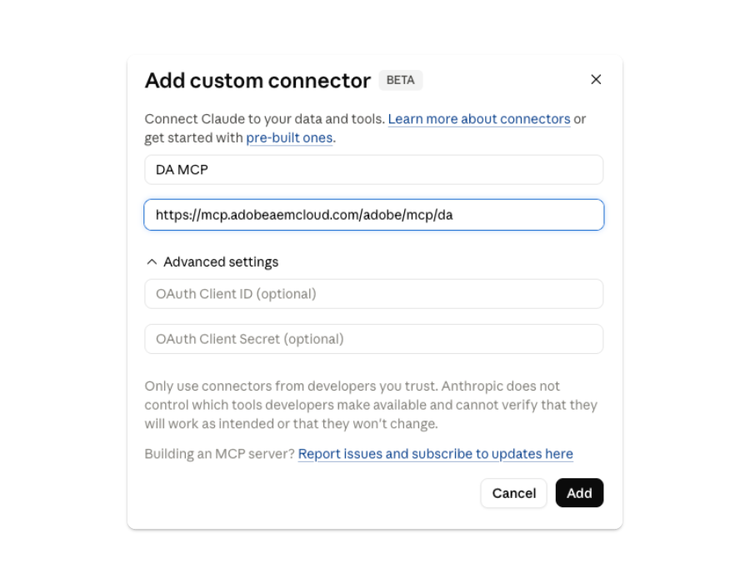
In the dialog enter the name "DA MCP" and use the https://mcp.adobeaemcloud.com/adobe/mcp/da URL. Leave the optional fields empty , the MCP will handle the Adobe IMS login.
Option 2: Claude Desktop
If you use the Claude Desktop app, add the following to your config file. On macOS, the file is at ~/Library/Application Support/Claude/claude_desktop_config.json:
- claude_desktop_config.json (json)
{
  "mcpServers": {
    "da-live-admin": {
      "type": "streamable-http",
      "url": "https://mcp.adobeaemcloud.com/adobe/mcp/da"
    }
  }
}
The mcp.adobeaemcloud.com endpoint handles Adobe IMS authentication automatically. No token configuration required.
Option 3: VS Code or Cursor
Add the following to .vscode/mcp.json in your project, or to your global Cursor settings:
- .vscode/mcp.json (json)
{
  "mcpServers": {
    "da-prod-mcp": {
      "url": "https://mcp.adobeaemcloud.com/adobe/mcp/da"
    }
  }
}
Option 4: Server to server
- Get an Edge Delivery Services card at: https://developer.adobe.com/console/servicesandapis
- Add the email to your DA Config permission sheet: http://da.live/config#/{YOUR_DA_ORG}/ (docs)
- Add the relevant config where you need it [see code example below]
- Make the appropriate server-to-server call based on your Edge Delivery Services card and pass it as noted below.
- mcp-config-example (json)
{
  "mcpServers": {
    "da-live-admin": {
      "type": "streamable-http",
      "url": "https://da-mcp.adobeaem.workers.dev/mcp",
      "headers": {
        "Authorization": "Bearer YOUR_DA_USER_IMS_TOKEN"
      }
    }
  }
}
Option 5: Claude.ai (Adobe only)
For Adobe employees using the Adobe Enterprise account, the DA MCP is already pre-configured. It is available as a built-in connector in Claude.ai. Navigate to Settings → Connectors, find DA MCP, and click Connect. Sign in with your Adobe IMS account and you're done — Claude can access your DA repositories in any new conversation.
Tips for working with AI and DA
- Be specific about paths. Claude works best when you mention the full org, repo, and path — for example: "list the files in da-pilot/docket/about/" rather than "show me the about folder."
- Preview before you commit. For create and update operations, ask Claude to show you the content first, then confirm before it writes to DA. This is especially useful for longer pages.
- Bulk operations work well. DA MCP handles multi-step workflows reliably — things like "copy these three files to a new folder and update the navigation in each one" can run in a single conversation turn.
- Combine with research. Claude can look something up on the web, draft content from what it finds, and save the result to DA in one go — handy for quickly populating new sections or keeping reference pages up to date.
Set up a Claude Project
Claude Projects let you save persistent instructions that apply to every conversation. Instead of re-explaining your domain mappings, path conventions, and editing preferences each time, you write them once in the Project instructions and Claude picks them up automatically — making Projects a great home for your DA workflow setup.
To get started, create a new Project in Claude.ai, open its Project instructions, and paste in something like the following. Adjust the domains and defaults to match your own repositories:
- project-instructions (markdown)
## Domains
- https://docs.da.live → https://main--docket--da-pilot.aem.page
- https://authorkit.dev → https://main--author-kit--aemsites.aem.page

## Instructions
- When given a production URL, find it in the domains above and use the corresponding AEM URL to resolve the org, site, and path.
- Give a high level overview if editing content not in drafts, otherwise, just update the content.
- Always supply a DA edit link after editing content.
- If I don't give you a path, make something in /drafts/cmillar
- If creating content in a drafts folder, always preview it immediately
With this in place, every conversation in the Project inherits the same context — no need to repeat yourself, and Claude will consistently follow your conventions across sessions.
Early access
DA MCP is currently in early access. Features and APIs may change. If you run into issues or have ideas, join the AEM Live Discord and share what you're building.